

Skip to content

Voice Intake & Smart Documentation

Voice to Clinical Notes and a Completed Prescription Pad

Speak naturally. DxCopilot prepares structured clinical notes and fills your own prescription pad from the same dictation, so you review and finalize instead of writing everything twice. In the app, this is Quick Prescription & Notes.

Illustrative layout: one dictation prepares clinical notes and a prescription for your review.

How It Works

From Spoken Consultation to Reviewed Documents

One dictation prepares both documents. Switching between them, editing, saving and printing need no further AI request.

  1. 1

    Speak Naturally

    Dictate the visit as you would say it, or type it if you prefer.

  2. 2

    Clinical Notes Generated

    Your dictation is organized into structured clinical note sections.

  3. 3

    Prescription Pad Completed

    Medications, investigations, advice and follow-up appear on your own pad.

  4. 4

    Doctor Reviews

    Edit any line, then save, print or download when you are satisfied.

Natural speech, populated pad, generated notes

  1. 1 · Natural speech

    “25-year-old male, fever and body aches for two days. Temperature 100.4 °F. My assessment is febrile illness. Prescribe paracetamol 500 mg twice daily for three days. Order CBC and blood sugar. Advise fluids and follow up after three days.”

    Voice Intake · Prepare Documents

  2. 2 · Prescription pad

    Age: 25 yrsSex: Male
    Dx
    Febrile illness
    Ix
    CBC · Blood sugar
    Rx
    Paracetamol 500 mg — twice daily · 3 days
    Advice
    Fluids
    F/U
    After three days

    Review flag: add the patient’s name

  3. 3 · Clinical notes

    Chief complaint
    Fever and body aches
    History of present illness
    Two days’ duration
    Examination & vital signs
    Temperature 100.4 °F
    Assessment
    Febrile illness
    Advice & follow-up
    Fluids; review after three days
Synthetic example. Every entry comes from the doctor’s own dictation: DxCopilot organizes what you say and does not choose the treatment. The pad uses your own design.

A pad that looks like yours

Set up your pad once in Pad Settings. Choose a predefined design and fill in your details — no layout building required.

  • Practice letterhead and details

    Your practice name, address and phone number appear on every pad.

  • Doctor details

    Name, qualifications, specialty and registration number, set once in Pad Settings.

  • 5 predefined pad designs

    Pick a layout with details at the top, left, right or bottom, or contact details in the footer.

  • Logo and signature

    Upload a logo, and upload or draw your signature. A live preview shows the result.

  • Blank-pad mode

    Already have printed stationery? Print the prescription content on your own pad.

  • Edit generated content

    Change any line on the pad or notes. Review flags point out a missing dose, frequency or duration.

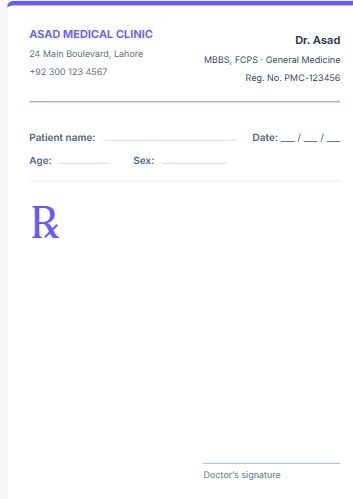
  • Classic Indigo prescription pad design: details at top

    Classic Indigo

    Details at top

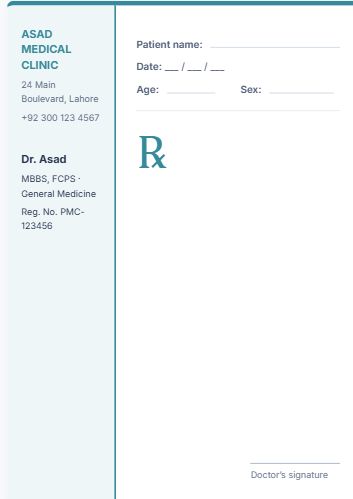
  • Modern Teal prescription pad design: details on left

    Modern Teal

    Details on left

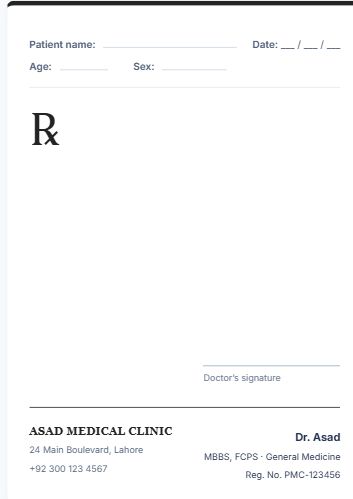
  • Minimal Black prescription pad design: details at bottom

    Minimal Black

    Details at bottom

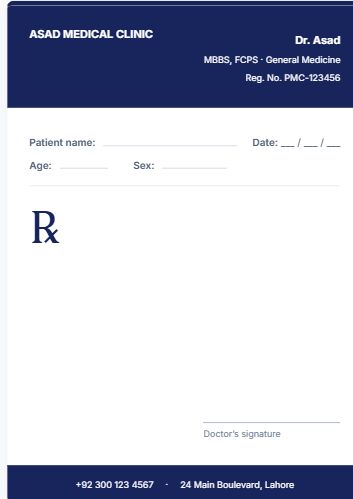
  • Navy Letterhead prescription pad design: contact in footer

    Navy Letterhead

    Contact in footer

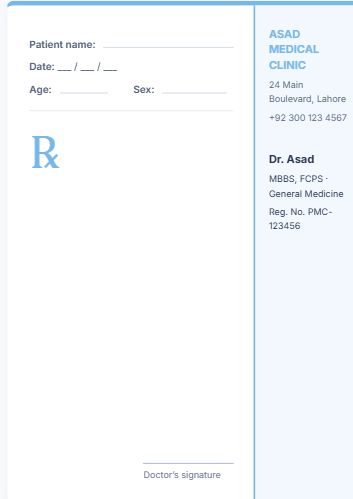
  • Soft Blue prescription pad design: details on right

    Soft Blue

    Details on right

The designs available in Pad Settings, shown with sample doctor details.

Automated Clinical Documentation You Control

Quick Prescription & Notes is voice-to-clinical-notes software built into your DxCopilot workspace. It organizes what you say; you decide what is kept.

  • Speak naturally instead of typing every detail.
  • Structured clinical notes generated from spoken input.
  • Prescription pad fields completed from the same dictation.
  • Review, edit and approve every line before it is saved or printed.
  • Less repetitive documentation, more attention for the patient.

Structured clinical notes

Chief complaint, history of present illness, relevant history and allergies, examination and vital signs, assessment, treatment plan, investigations, and advice and follow-up. Only the sections your dictation supports are shown.

An AI prescription pad that looks like yours

Diagnosis, investigations, medications, advice and follow-up are laid out on the pad you configured, with your letterhead, design, logo and signature.

Review, then save or print

Edit directly on the page. Review flags highlight missing patient details, doses, frequencies or durations. Save, print or download each document when you are ready.

Clinical judgment stays with you

DxCopilot prepares documents from your dictation; it does not prescribe or decide treatment. AI output may be incomplete or incorrect, so check every entry against the consultation before you save or print. Read how dictation is handled in the privacy policy.

Questions

Voice-Based Clinical Documentation Questions

How does voice-to-clinical-notes work in DxCopilot?

Dictate the visit in a supported browser, or type it, then choose Prepare Documents. One AI request reads the dictation, and DxCopilot builds two documents from it: clinical notes organized into sections and a prescription on your own pad. Notes show only the sections your dictation supports.

What does the AI prescription pad complete?

Diagnosis, investigations, medications with their instructions, advice and follow-up, plus the patient name, age and sex when you state them. The prescription uses the letterhead, layout, logo and signature you set up in Pad Settings.

Can I use my own branding on the prescription pad?

Yes. In Pad Settings you add your practice name, address and phone number, your name, qualifications, specialty and registration number, a logo and an uploaded or drawn signature, then choose one of five predefined designs and an accent colour. Blank-pad mode prints only the prescription content on stationery you already have. Layouts come from the predefined designs; free-form layout editing is not offered.

Can I review and edit everything before it is used?

Yes. Both documents are edited directly on the page, line by line. Review flags point out a missing name, age, sex, dose, frequency or duration, and statements the AI found ambiguous. Nothing is saved until you choose Save, and you remain responsible for the final prescription.

What is sent to the AI, and what is stored?

Only the dictation text is sent. A patient name introduced with a recognized phrase, such as "patient name is", is replaced with a placeholder before sending; a name given another way may still be sent. The transcript is not stored, and documents are kept only when you save them.

How are Quick Prescription & Notes credits used?

Each prepared dictation uses one Quick Prescription & Notes credit. Editing, saving, printing and writing a prescription without dictation use none, and a preparation that returns nothing usable is not charged.

Spend less time typing after every consultation.

Dictate, review and finalize your notes and prescription in one place.

Explore template auto-fill · Explore Clinical AI Analysis · Compare plans and credits