Skip to content

Voice documentation & clinical AI analysis

Less Manual Documentation.A Second Eye on the Case.

DxCopilot helps doctors turn spoken consultations into clinical notes and completed prescription pads, then use AI-assisted clinical analysis to review patient cases and available medical report information.

Designed to support doctors' workflows while keeping clinical decisions under the doctor's control.

  • Speak or type

    Dictate in a supported browser, or type the visit.

  • Edit before you save

    Documents and suggestions stay editable.

  • Doctor in control

    You review. You decide.

Product demo · 1:51

See DxCopilot in Action

Watch both workflows in under two minutes: a dictation becoming a completed prescription pad and clinical notes, then a clinical template, an attached report and a structured AI-assisted analysis you review.

Jump to a chapter

Two Complementary Workflows

Document Faster. Review Cases More Thoroughly.

Use voice documentation for everyday visits and Clinical AI Analysis when a case needs a closer, structured look. Neither one requires the other.

Feature A

Voice Intake & Smart Documentation

For every visit: say the consultation once and review a prepared prescription pad and clinical notes instead of writing both by hand.

  • Natural voice intake, or type if you prefer
  • Prescription pad auto-fill: diagnosis, tests, medicines, advice, follow-up
  • Structured clinical notes from the same dictation
  • Your letterhead, doctor details, logo, signature and pad design
  • Every line editable on the page before you save or print
  • Less repetitive writing after each consultation

Feature B

Clinical AI Analysis

For cases that need a closer look: organize the case in a clinical template, add available reports and review a structured, referenced analysis.

  • Predefined templates across 20 specialties
  • Edit, duplicate or create your own templates
  • Complete fields manually or let AI fill them from your intake
  • Attach PDF, Word, text and image reports
  • Structured output: alerts, differentials, tests, treatment, medications
  • Citations & references, with every suggestion for you to accept, edit or remove

CSupporting capabilities

  • 20 specialty template libraries

    Built-in consultation templates, from General Medicine and Cardiology to Pediatrics.

    Browse templates
  • 100 dictation language choices

    Pick the language you speak in. Support depends on your browser’s speech service.

  • Text recognition for scanned reports

    Printed text in photos and scans is read in your browser, for you to check and correct.

  • Print, PDF and patient QR follow-up

    Print or save either document as PDF; a saved patient’s QR code reopens their record for you.

  • Consultation history

    Return to saved visits and bring earlier notes into a new AI-assisted consultation.

  • Desktop and mobile browsers

    A responsive workspace with nothing to install. Usage and credits are visible in your account.

Feature A:Voice Intake & Smart Documentation

Speak Naturally. Let DxCopilot Prepare Your Documentation.

Turn spoken consultation details into structured clinical notes and a completed prescription pad, with less repetitive manual writing. In the app, this is Quick Prescription & Notes.

  1. 1 · Natural speech

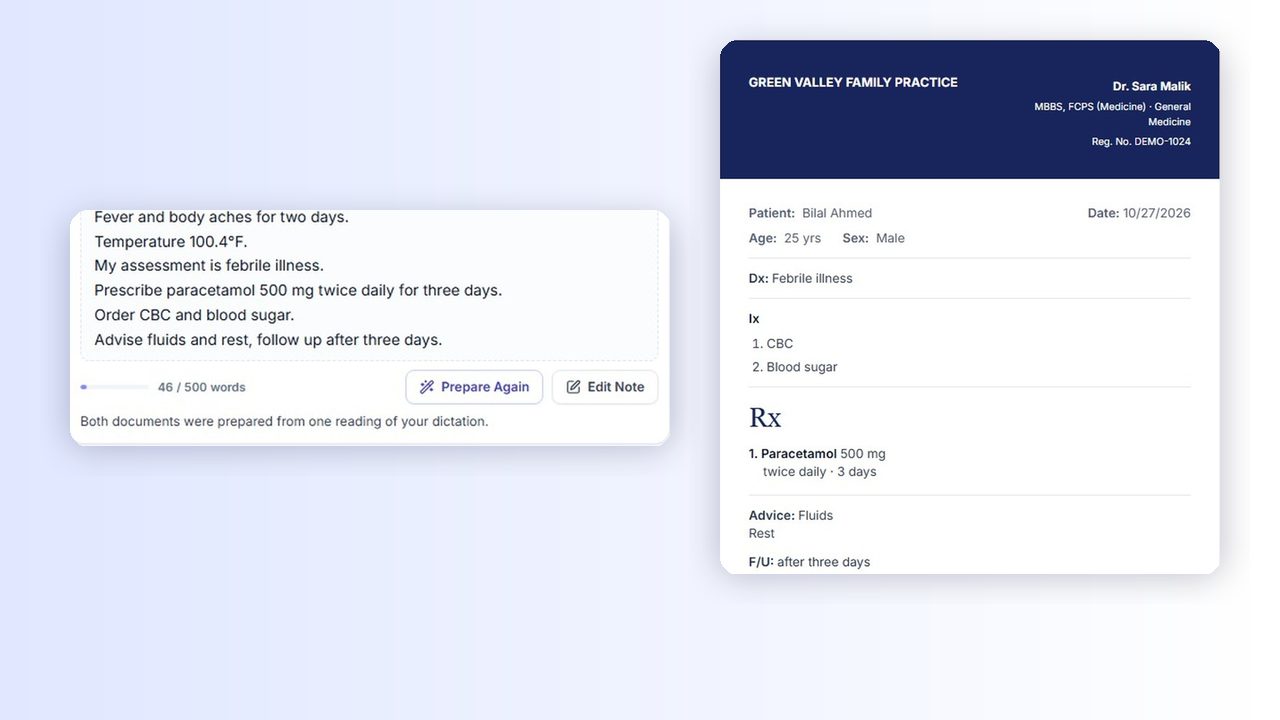
    “25-year-old male, fever and body aches for two days. Temperature 100.4 °F. My assessment is febrile illness. Prescribe paracetamol 500 mg twice daily for three days. Order CBC and blood sugar. Advise fluids and follow up after three days.”

    Voice Intake · Prepare Documents

  2. 2 · Prescription pad

    Age: 25 yrsSex: Male
    Dx
    Febrile illness
    Ix
    CBC · Blood sugar
    Rx
    Paracetamol 500 mg — twice daily · 3 days
    Advice
    Fluids
    F/U
    After three days

    Review flag: add the patient’s name

  3. 3 · Clinical notes

    Chief complaint
    Fever and body aches
    History of present illness
    Two days’ duration
    Examination & vital signs
    Temperature 100.4 °F
    Assessment
    Febrile illness
    Advice & follow-up
    Fluids; review after three days
Synthetic example. Every entry comes from the doctor’s own dictation: DxCopilot organizes what you say and does not choose the treatment. The pad uses your own design.

How voice documentation works

  1. Step 1

    Speak naturally

    Dictate the visit as you would say it in a supported browser, or type it.

  2. Step 2

    DxCopilot organizes it

    Choose Prepare Documents. One AI request reads your dictation.

  3. Step 3

    Pad fields are completed

    Diagnosis, investigations, medicines with instructions, advice and follow-up.

  4. Step 4

    Clinical notes are generated

    Only the note sections your dictation supports are shown.

  5. Step 5

    You review and finalize

    Edit any line, then save, print or download. Nothing is saved until you choose Save.

A pad that looks like yours

Set up your pad once in Pad Settings. Choose a predefined design and fill in your details — no layout building required.

  • Practice letterhead and details

    Your practice name, address and phone number appear on every pad.

  • Doctor details

    Name, qualifications, specialty and registration number, set once in Pad Settings.

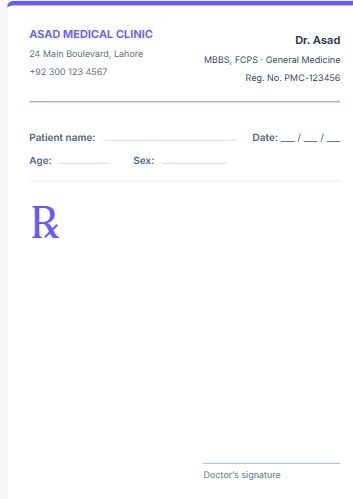
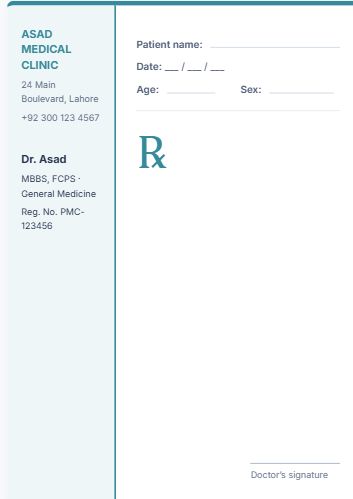
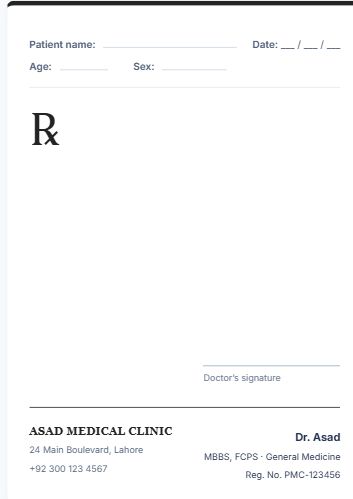
  • 5 predefined pad designs

    Pick a layout with details at the top, left, right or bottom, or contact details in the footer.

  • Logo and signature

    Upload a logo, and upload or draw your signature. A live preview shows the result.

  • Blank-pad mode

    Already have printed stationery? Print the prescription content on your own pad.

  • Edit generated content

    Change any line on the pad or notes. Review flags point out a missing dose, frequency or duration.

  • Classic Indigo prescription pad design: details at top

    Classic Indigo

    Details at top

  • Modern Teal prescription pad design: details on left

    Modern Teal

    Details on left

  • Minimal Black prescription pad design: details at bottom

    Minimal Black

    Details at bottom

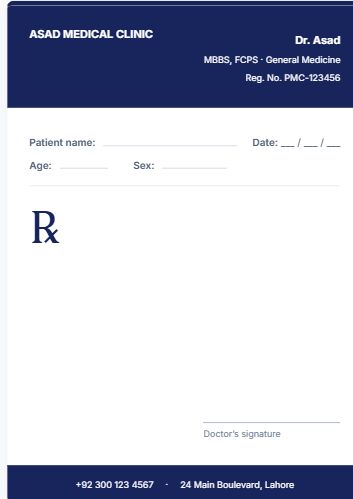
  • Navy Letterhead prescription pad design: contact in footer

    Navy Letterhead

    Contact in footer

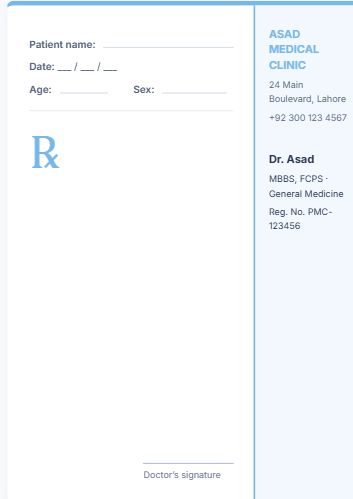
  • Soft Blue prescription pad design: details on right

    Soft Blue

    Details on right

The designs available in Pad Settings, shown with sample doctor details.

Nothing is saved or finalized automatically. You review both documents, edit what you need and choose when to save, print or download them.

Feature B:Clinical AI Analysis

From Clinical Templates to Structured AI-Assisted Analysis.

Organize consultation information, include available patient report findings, and generate structured clinical analysis with relevant references for your review.

  1. 1

    Choose a clinical template. Start from a specialty template or one of your own.

  2. 2

    Complete the intake. Fill fields manually, or dictate a note and choose Fill Template Fields to complete supported fields.

  3. 3

    Adjust templates when you need to. Edit or duplicate a template, create one from scratch, or save a visit as a new template.

  4. 4

    Attach available reports. Add PDF, Word, text or image files, or photograph a paper report on mobile.

  5. 5

    Click Analyze. Analyze with DxCopilot reads the intake and the reports’ extracted text.

  6. 6

    Review the structured output. Report findings, the overall analysis and its citations appear in separate, labelled cards.

  7. 7

    Accept, edit or remove. Decide on each suggestion. Accepted items can carry onto the consultation’s prescription pad.

1 · Template

General Medicine

2 · Intake

  • Symptoms
  • History / Comorbidities
  • Observations

3 · Reports

lab-report.pdfProcessed

4 · Analyze with DxCopilot

5 · Review structured results

Alerts

AcceptEditRemove

Differential Diagnosis

AcceptEditRemove

Suggested Tests

AcceptEditRemove

Medications

AcceptEditRemove

Citations & References

Illustrative layout using the application’s section names. Placeholder lines stand in for output; this is not a real analysis.

Templates that fit your practice

Select a predefined template
Specialty starter templates give each case a consistent structure.
Edit template content
Add, rename or remove sections and fields to match how you examine.
Create a new template
Build from scratch, duplicate an existing one, or save a visit as a template.
Populate it manually
Text, number, option, yes/no and chip fields keep entries structured.
Populate it with AI
Fill Template Fields completes only empty fields that can hold a stated value exactly.
Review before analysis
Every value stays editable; details without a field are kept separately.

Browse specialty templatesHow template auto-fill works

Patient reports in the analysis

  • Supported files: PDF, Word (DOCX), plain text, and JPG, PNG, WEBP or GIF images — by default up to 10 MB each and 10 files per visit, with 5 included in each analysis.
  • How they are read: text in searchable PDFs, Word and text files is read directly. Printed text in images and scanned pages is recognised in your browser, and you can check and correct it before it is sent.
  • Findings kept apart: each report gets its own card — Summary, Key Findings, Abnormal / Important Findings, Clinical Significance, Warnings — with a processing status, separate from the overall analysis.
  • Limits: DxCopilot works from extracted text. It does not visually interpret images, scans or ECG traces, and recognition can contain errors, so check what was read.

What the analysis can include

Shown under the same names as in the app. Choose which parts each template asks for, and a concise, standard or detailed response, with Reconfigure AI.

  • Alerts

    Red flags and points to reassess.

  • Clinical Summary

    The case as the analysis understood it.

  • Differential Diagnosis

    Most likely, also consider, and the reasoning for each.

  • What Might Be Missing?

    Information worth gathering.

  • Risk Scores

    Relevant clinical scores alongside the case.

  • Suggested Tests

    Investigations to consider.

  • Treatment

    Management considerations.

  • Medications

    Dose, frequency, duration and cautions, plus current-medication and interaction review.

  • Second Opinion

    An alternative view of the case.

  • Follow-Up Plan

    Optional; switched on per template.

  • What Has Changed Since Last Visit?

    Previous and current values side by side, with earlier history in the review. The QR code on the pad opens previous visits.

  • Citations & References

    Supporting sources to check.

Clinical decision support, not a diagnosis. AI output can be incomplete or incorrect. You review every suggestion against the patient in front of you and remain responsible for clinical decisions.

Explore Clinical AI Analysis

How DxCopilot Works

Two Purposes, One Reviewable Workflow

Documentation and analysis serve different needs. Many visits only need steps 1, 2 and 5; add steps 3 and 4 when a case calls for a structured review.

  1. 1Documentation

    Capture the consultation

    Speak or type the visit in Voice Intake.

  2. 2Documentation

    Get your pad and notes

    Review the prepared prescription pad and clinical notes.

  3. 3Analysis

    Choose a template when you want analysis

    Pick a clinical template and complete it manually or from your intake.

  4. 4Analysis

    Attach reports and select Analyze

    Add any available reports, then Analyze with DxCopilot.

  5. 5Both

    Review and finalize

    Edit the output and documents, keep what is useful and make the final decision.

Prefer to watch? Play the 1:51 product demo

Plans & pricing

Choose the right plan for your practice

Compare subscription prices and the Clinical AI Analysis and Quick Prescription & Notes credits in each plan, and see whether a free demo is currently offered.

View plans and pricing

Questions

Using DxCopilot in Your Practice

Who is DxCopilot for?

The current public release is for independent, solo doctors who want faster consultation documentation and structured clinical decision support.

See both core workflows
How does voice intake work?

In Quick Prescription & Notes, dictate the visit in a supported browser in the language you choose, or type it, up to 500 words. Choose Prepare Documents and one AI request reads the text. A patient name introduced with a recognized phrase is replaced with a placeholder before sending, and the transcript is not stored.

Explore voice documentation
Can DxCopilot generate both a prescription pad and clinical notes?

Yes. One dictation prepares both: the prescription on your own pad, with diagnosis, investigations, medicines with their instructions, advice and follow-up, and clinical notes showing only the sections your dictation supports. DxCopilot organizes what you say; it does not choose the treatment.

See how documents are prepared
Can I use my own branding and customize my prescription pad?

Yes. In Pad Settings, add your practice name, address and phone number, your doctor details, a logo and an uploaded or drawn signature, then choose one of five predefined designs and an accent colour. Blank-pad mode prints on stationery you already have. Layouts come from the predefined designs; free-form layout editing is not offered.

See the pad designs
Can I edit generated documentation?

Yes. Both documents are edited directly on the page, line by line. Review flags point out a missing name, age, sex, dose, frequency or duration. Nothing is saved until you choose Save, and you can print or save a PDF whenever you are ready.

Read the documentation FAQ
Can I use, edit or create my own clinical templates?

Yes. Use a built-in specialty template, edit its sections and fields, duplicate it, create one from scratch, or save a recorded visit as a template. You can also choose which parts of the analysis each template asks for.

Explore specialty consultation templates
Can AI populate a template from my consultation intake?

Yes. Dictate or type your note in Voice Intake and choose Fill Template Fields. Only empty fields that can hold a stated value exactly are filled, values you entered are kept, and other stated details are kept as editable Additional Details.

How template auto-fill works
Can I attach patient reports, and which formats are supported?

Yes. Attach PDF, Word (DOCX), plain text, or JPG, PNG, WEBP or GIF images: by default up to 10 MB each, 10 files per visit and 5 in each analysis. Printed text in images and scanned pages is recognised in your browser for you to review and correct. DxCopilot works from text and does not visually interpret images, scans or ECG traces. Do not upload direct patient identifiers.

Explore Clinical AI Analysis
What structured analysis and references are generated?

Alerts, a clinical summary, differential diagnosis, what might be missing, risk scores, suggested tests, treatment, medications, a second opinion, an optional follow-up plan, and citations and references, plus a findings card for each attached report. Each template can switch parts on or off.

See the analysis output
Does DxCopilot replace a doctor's judgment?

No. DxCopilot offers suggestions for a qualified doctor to review, edit or reject. It does not replace clinical judgment, prescribe independently or treat patients.

Read about clinical review and judgment
Which specialties are supported?

The built-in catalog covers 20 specialties, including General Medicine, Cardiology, Pediatrics and Internal Medicine. You can also create personal templates for your own documentation needs.

Explore specialty consultation templates
How do the free demo and pricing work?

When a free demo is offered, a new account starts on it automatically. It lasts a set number of days with a set allowance, is available once per account and never renews; to continue, you choose a paid plan. Plans include separate Clinical AI Analysis and Quick Prescription & Notes credits. The pricing page shows current prices, allowances and whether a demo is offered.

Compare current plans
How is patient information handled?

For voice documentation, only the dictation text is sent to the AI and the transcript is not stored; documents are kept only when you save them. For Solo Doctor accounts, attached report files are not stored: their extracted text is sent for analysis and the files are discarded. The privacy policy explains what is sent to AI providers and which service providers are involved.

Read the privacy policy


Talk to Us

However You Prefer to Ask

A question about the product, a walkthrough for your practice, or a quick message — whichever fits.

Contact Us

For product, pricing, partnership or general questions.

Send a Message

Book a Demo

See how DxCopilot can fit your independent practice workflow.

Request a Demo

Clinical intelligence at your side

Say it once. Review it with structure.

Prepare your notes and prescription pad by voice, and analyze the cases that need a closer look.